Start Here
Cisco AnyConnect provides secure VPN access to MFLEX internal resources.
Open AnyConnect
Launch Cisco AnyConnect Secure Mobility Client from the Start menu, desktop shortcut, or system tray.
Use the correct VPN address
Most MFI users use mflexvpn.mflex.com/mflex. Multek employees and China travel scenarios use different profiles.
Sign in with Office account
Use the same username and password that you use for Microsoft 365 and company email.
VPN Server Addresses
Choose the address that matches your business need.
MFI VPN
mflexvpn.mflex.com/mflex
Use this for normal MFI VPN access to internal resources.
Irvine office resource access
mflexvpn.mflex.com/multek
Multek employees should use this VPN server address when Irvine office network resources are required.
All Traffic VPN
mflexvpn.mflex.com/alltraffic
Use this mobile profile for China travel when instructed by MFLEX IT.

Multek Employees: Irvine Office Resource Access
Use the Multek VPN server address when access to Irvine office network resources is required.
-
Open Cisco AnyConnect Secure Mobility Client.
Launch AnyConnect from your computer.
-
Enter the Multek VPN server address.
Type mflexvpn.mflex.com/multek in the VPN server field, then select Connect.
-
Sign in and complete MFA.
Use your Multek Microsoft 365 work account, such as username@multek.com, and complete SMS or Microsoft Authenticator verification when prompted.
-
Access Irvine office resources after VPN connects.
After AnyConnect shows connected, open the required Irvine office resource or application and confirm access works.
Connect to Cisco AnyConnect VPN
Follow these steps each time you need VPN access. The screenshots are examples only and may show MFLEX sample values.
-
Open Cisco AnyConnect Secure Mobility Client.
Launch the application and confirm the VPN server field has the correct address for your company or access type. For example, MFI users commonly use mflexvpn.mflex.com/mflex, and Multek employees use mflexvpn.mflex.com/multek for Irvine office resource access.
Example screen only: confirm your assigned VPN server address before clicking Connect. -
Enter your Microsoft 365 username.
When the Cisco AnyConnect Login window opens, enter your Office 365 sign-in ID. Examples: MFLEX employees use username@mflex.com, Multek employees use username@multek.com, and DSBJ employees should use their assigned DSBJ Office 365 sign-in ID.

Example screen only: use your own Office 365 username, not the sample account shown. -
Enter your password.
Enter the same password you use for Office 365 and company email, then select Sign in.

Use your normal Office 365 password. -
Complete MFA verification.
If your MFA method is SMS, enter the code sent to your phone and select Verify. If your MFA method is Microsoft Authenticator, approve the sign-in request in the app.
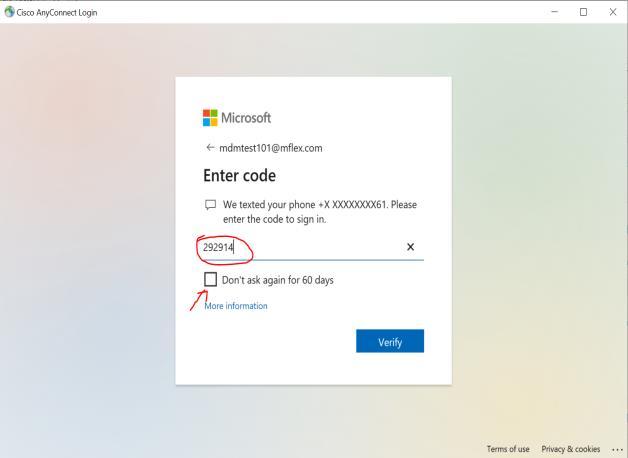
Enter the verification code only if it was requested by Microsoft sign-in. -
Choose whether to stay signed in.
If Microsoft asks Stay signed in, select Yes or No based on your preference and company guidance. On shared or temporary computers, select No.

Choose Yes or No to complete the Microsoft sign-in flow.
China Travel: Mobile All Traffic VPN
Use this mobile Cisco Secure Client profile when travelling to China and IT instructs you to route all traffic through MFLEX VPN.
-
Install Cisco Secure Client on your mobile device.
Open the Intune Company Portal app, sign in with your Microsoft 365 work account, go to Apps, then install Cisco Secure Client.
-
Add a VPN connection profile.
Open Cisco Secure Client, select Connections, then select Add VPN Connection.
-
Enter the All Traffic profile details.
Description: MFI-AllTraffic. Server Address: mflexvpn.mflex.com/alltraffic.

Enter the All Traffic profile name and server address. -
Review Advanced settings.
Set Certificate to Automatic, App Rules to None, Connect On Demand to disabled, and Connect with IPSec to disabled.

Confirm the Advanced settings before saving the profile. -
Save and select the All Traffic profile.
Save the profile, then select MFI-AllTraffic so a check mark appears next to it.

Select MFI-AllTraffic before enabling the VPN. -
Enable AnyConnect VPN and sign in.
Turn on AnyConnect VPN, then enter your Microsoft 365 username, password, and MFA verification code or token when prompted.
Screenshot Overview
Use these examples to match what you see while connecting.
MFA Verification
Complete the second factor required by Microsoft sign-in.
SMS code
If Microsoft texts a code to your phone, enter the code in the verification screen and select Verify.
Authenticator approval
If Microsoft Authenticator is your MFA method, approve the sign-in request on your mobile device. Do not approve requests you did not start.
Verify VPN Connection
Confirm AnyConnect is connected before opening internal resources.
AnyConnect status
Cisco AnyConnect should show that VPN is connected, or the AnyConnect icon should indicate an active connection in the system tray.
Application test
Open the internal resource, file share, remote application, or business system that requires VPN. If it does not load, review troubleshooting before repeated sign-in attempts.
Disconnect When Finished
Disconnect VPN when you no longer need remote access to company resources.
-
Open Cisco AnyConnect.
Select the AnyConnect icon from the system tray or open Cisco AnyConnect Secure Mobility Client.
-
Select Disconnect.
Use Disconnect after you finish working with internal resources, before returning to the office network, or any time VPN is no longer required.
-
Reconnect when needed.
Open AnyConnect again and select Connect when you need VPN access later.
Troubleshooting
Try these checks if Cisco AnyConnect does not connect successfully.
The VPN server address is missing or wrong.
For standard MFI access, enter mflexvpn.mflex.com/mflex. For Multek Irvine office resource access, enter mflexvpn.mflex.com/multek. For the mobile All Traffic profile, enter mflexvpn.mflex.com/alltraffic. DSBJ employees should use the VPN server address assigned by IT. Do not add spaces or extra characters.
The Cisco AnyConnect Login window does not open.
Confirm your computer has internet access. Close AnyConnect, reopen it, and click Connect again. Restart the computer if the login window still does not appear.
My username or password is not accepted.
Use the same username and password as Microsoft 365 and company email. If the account is locked or the password is expired, contact the MFLEX IT Department.
I do not receive the MFA SMS code.
Check mobile signal and confirm the phone number on the prompt is yours. If the number is incorrect or the code never arrives, contact IT before retrying repeatedly.
I am connected but cannot reach internal resources.
Confirm AnyConnect shows connected, then verify the internal resource address. If only one application fails, include that application name when contacting IT.